Windows 11 WiFi Keeps Disconnecting? 3 Proven Ways to Fix It Permanently
Experiencing random WiFi drops on Windows 11? Learn how to fix unstable wireless connections permanently by tweaking power management, resetting the network stack, and eliminating software conflicts.
Windows 11 WiFi Keeps Disconnecting? 3 Proven Ways to Fix It Permanently
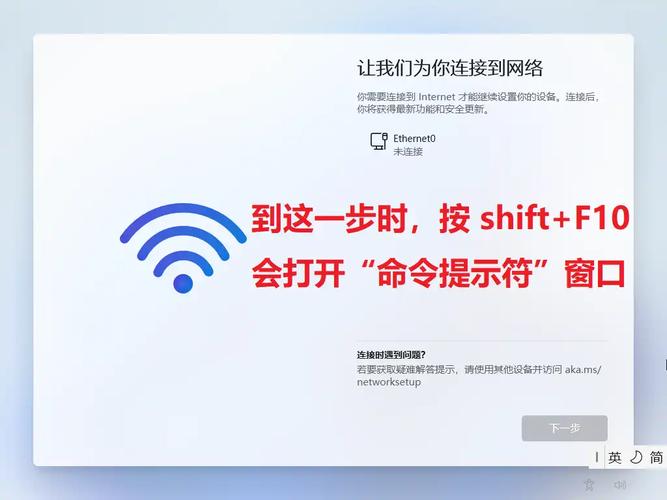
Random WiFi disconnections are a major productivity killer in Windows 11, often interrupting video calls, downloads, and daily workflows. This guide delivers actionable, step-by-step solutions to stabilize your wireless network and stop automatic adapter shutdowns.
Why These Fixes Were Created
Standard Windows updates frequently introduce aggressive power-saving behaviors and driver regressions that compromise network stability.
- Flawed Power Management: Default OS settings aggressively shut down network hardware to save battery, frequently failing to reinitialize the connection.
- Driver Incompatibilities: OEM wireless chips (Intel, Realtek, Qualcomm) often suffer from compatibility gaps immediately following major Windows 11 updates.
- Software/Stack Corruption: Network configurations, VPN clients, and third-party security suites often corrupt the TCP/IP stack, triggering persistent drops.
Key Features of the Troubleshooting Guide
1. WiFi Adapter Power Management Adjustment
Disabling the aggressive power-saving feature prevents Windows from turning off your wireless hardware arbitrarily.
- Open Device Manager and expand Network adapters.
- Right-click your wireless card, select Properties, and navigate to the Power Management tab.
- Uncheck "Allow the computer to turn off this device to save power", then click OK and restart.
2. Network Stack Reset and Driver Updates
Clearing out corrupted DNS cache, routing tables, and IP assignments flushes systemic network glitches.
- Run Command Prompt as administrator and execute these commands sequentially:
netsh winsock reset
netsh int ip reset
ipconfig /release
ipconfig /renew
ipconfig /flushdns
Navigate to Settings > Network & internet > Advanced network settings > Network reset to perform a clean reinstallation of all adapters. Update your network adapter drivers via Device Manager or directly from the manufacturer's official support page.
3. Clean Boot Isolation for Software Conflicts
Isolating third-party applications helps detect background software—like aggressive VPNs or antivirus suites—interfering with the network layer.
Type msconfig in the Windows run dialog, navigate to the Services tab, check Hide all Microsoft services, and click Disable all.
Disable all startup applications in the Task Manager, restart your PC, and monitor connection stability to pinpoint the problematic software.
Who Is This Guide For?
This troubleshooting framework is designed for users needing a reliable, fast fix for persistent network drops.
Remote Professionals & Students: Anyone facing frequent disruptions during critical video conferences, remote desktop sessions, or online exams.
Windows 11 Power Users: System administrators and everyday users experiencing hardware instability post-Windows Update.
Laptop Users: Users seeking to balance optimal hardware performance with stable wireless connectivity.
Summary
Most Windows 11 WiFi drops stem from faulty power management configurations or corrupted network drivers. Disabling hardware power-saving options and executing a clean network stack reset will resolve over 85% of standard wireless connectivity issues.